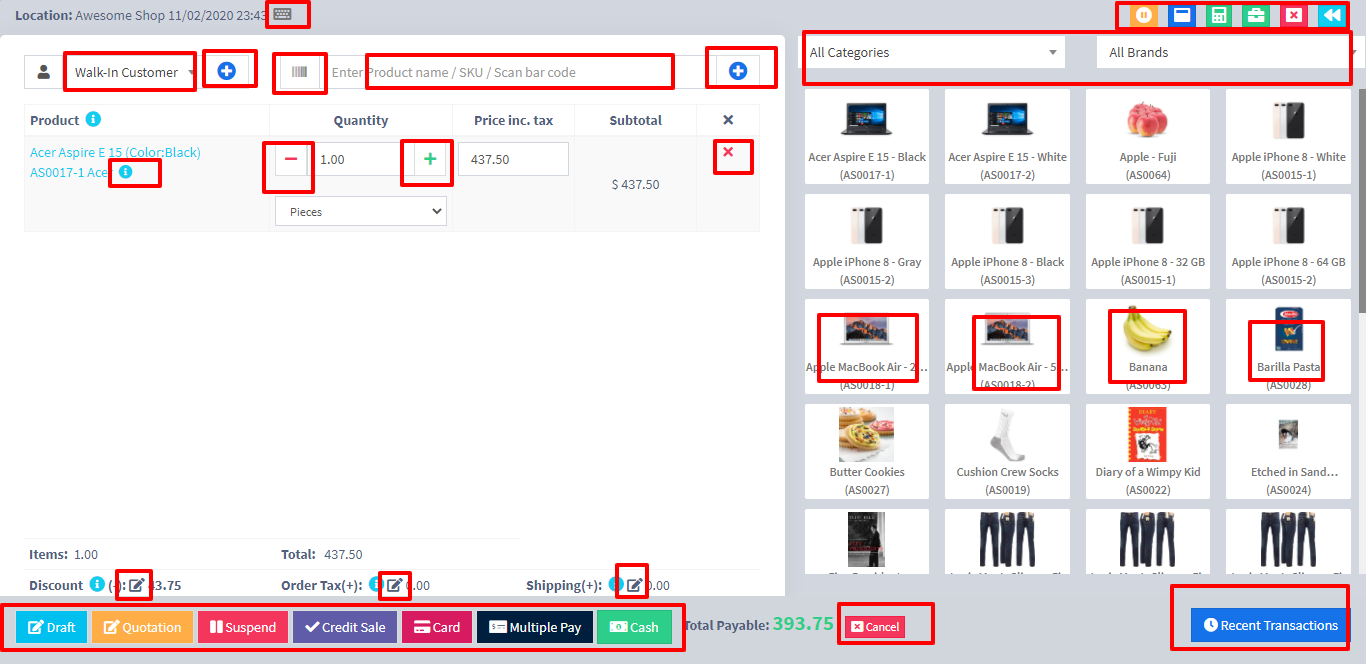
Interactions points in POS Screen.
Go to – Sell -> POS
By default, there is “Walk-In Customer”. You can search for a customer by name/customer id or phone number or can add new customer by clicking the plus (+) button “Add Customer”.
Enter Product Name Or scan the barcode to search the product. If multiple products are matched then it displays the dropdown of products, selects the product from it. Or if there is a single product then it directly gets added to cart.
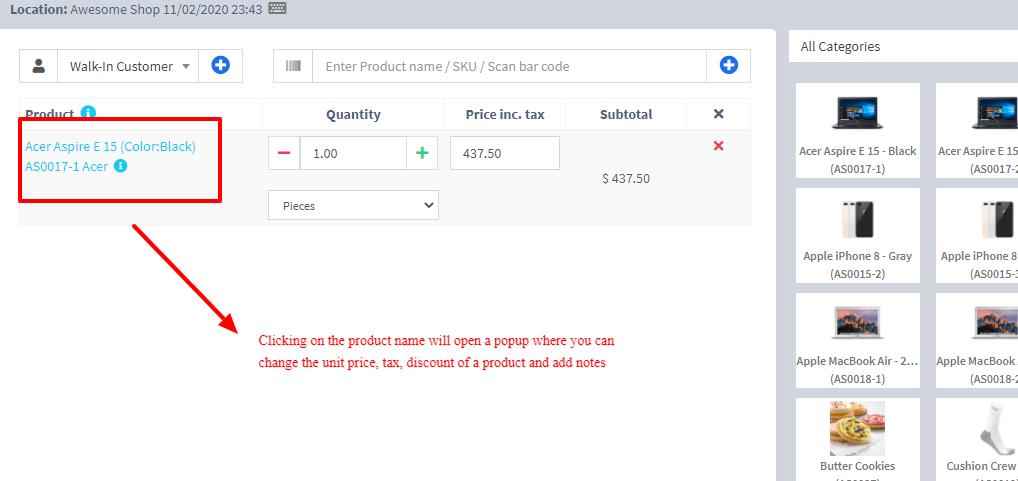

Suppose invoice amount is $1000, customers pays $700 cash and $300 is credit amount on him, then follow these steps:
If a sale is made for the customer for a subsequent time for the same product, the previous amount in which the product is sold will be shown for reference in add sale screen.
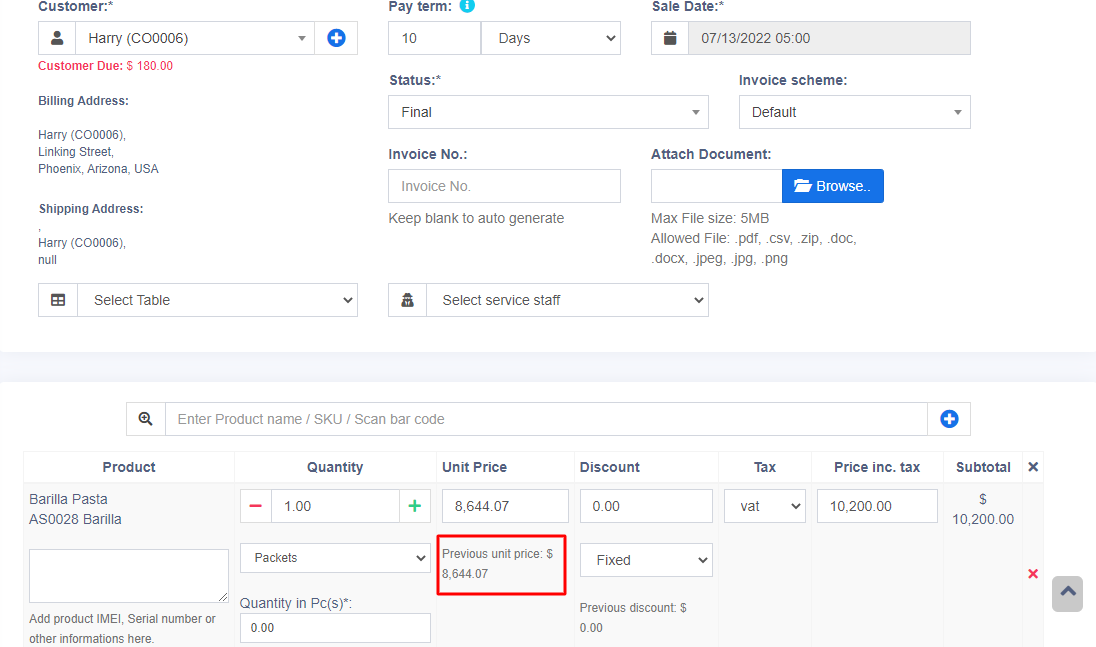
This feature can also be used for purchase of same products from a supplier.
NOTE: This feature is available in version 4.7.8 and above
This is useful if you want to create a quotation before sales.
Marking a sales as Draft or Quotations will not deduct the available stock.
You can view all Quotations & Drafts from List Quotation or List Draft respectively. Existing draft/Quotation can be edited to make it as final sales.
To convert a draft/quotation to sale invoice, follow the steps below
Go to List draft / List quotation. Click on the action button.
Select edit in the dropdown.
Change the status from draft/Quotation to Final and save it.
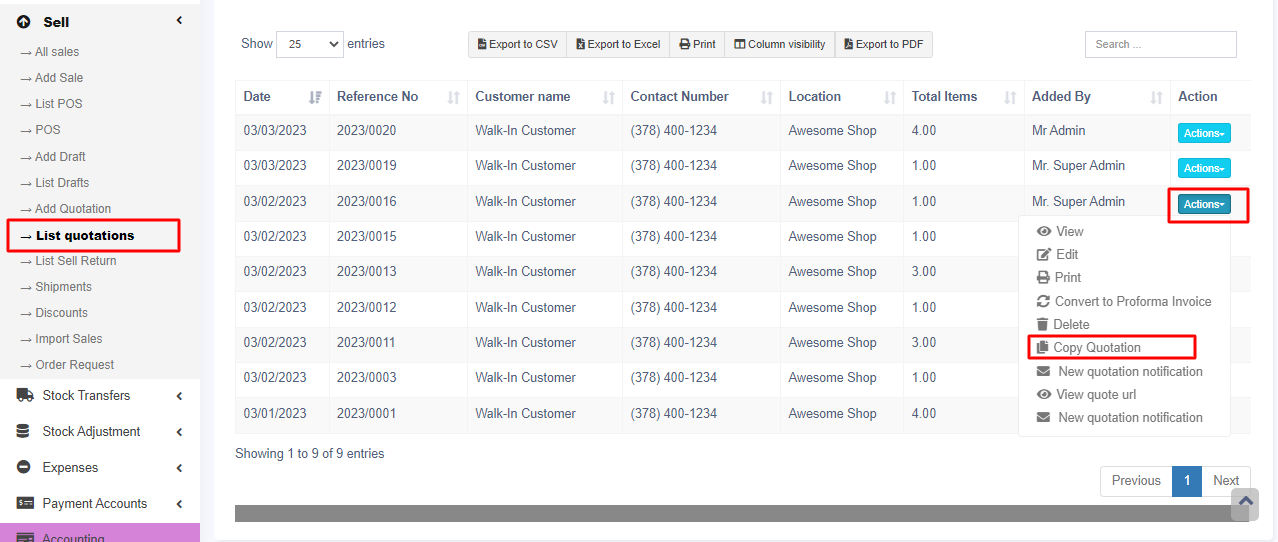
Quotations can be copied or duplicated.
Go to Sale > List Quotations > Actions > Copy Quotation
Suspend Sales means unfinished sale or hold Sale.
Suspended sales stock gets deducted from available stock. You can view all suspended sales by clicking on the Yellow Color button present in very top right of screen (above the date).
1. In a grocery store, if you have suspended button, you can suspend particular customers sales and entertain another customer, when his comeback you can proceed with his sale.
2. In Restaurant, you can suspend the order of customers if not yet paid, and finish it when they finish eating and paid their order, so you can proceed to final sales. You can put Table 1, Table 2, Table 3… so when they finish it’s easy to identify table 3 going to pay.
3. In hotel lots of customers check in stay for 2 nights and order some foods and customers say, just charge to room 024. So you can suspend their orders and edit if there is some additional order and suspend again. Until final it when they pay their bills. on Hotel, on Reference Number: Room 009, Room 012
Go to contact -> Suppliers. Click on actions for the supplier and it will show “Pay Due amount”, click on it and pay the amount. “Pay Due amount” this option is not displayed if there is no payment due.
Follow Add/Edit Pay-Via / payment method.
Rounding helps to round the total payable to nearest currency exchange available.
To enable rounding go to Settings -> Business Settings -> Sales and choose the Amount rounding method
Amount rounding method
In KOKABOOKSPOS, sales can also be added for past dates.
1. Enable date selection: By default, in POS screen all sales are recorded for current datetime. To add sales for past date enable datetime selection by going to Business Settings > POS Tab >Enable transaction date on POS screen
2. Pick date while doing sales: Once date is enabled (above step 1) you can now select date in POS screen while making sales, with this the sales will be added for that datetime.
No additional steps are required here, this screen already has the option to select Sale Date. Select that particular datetime to record sales of that.

