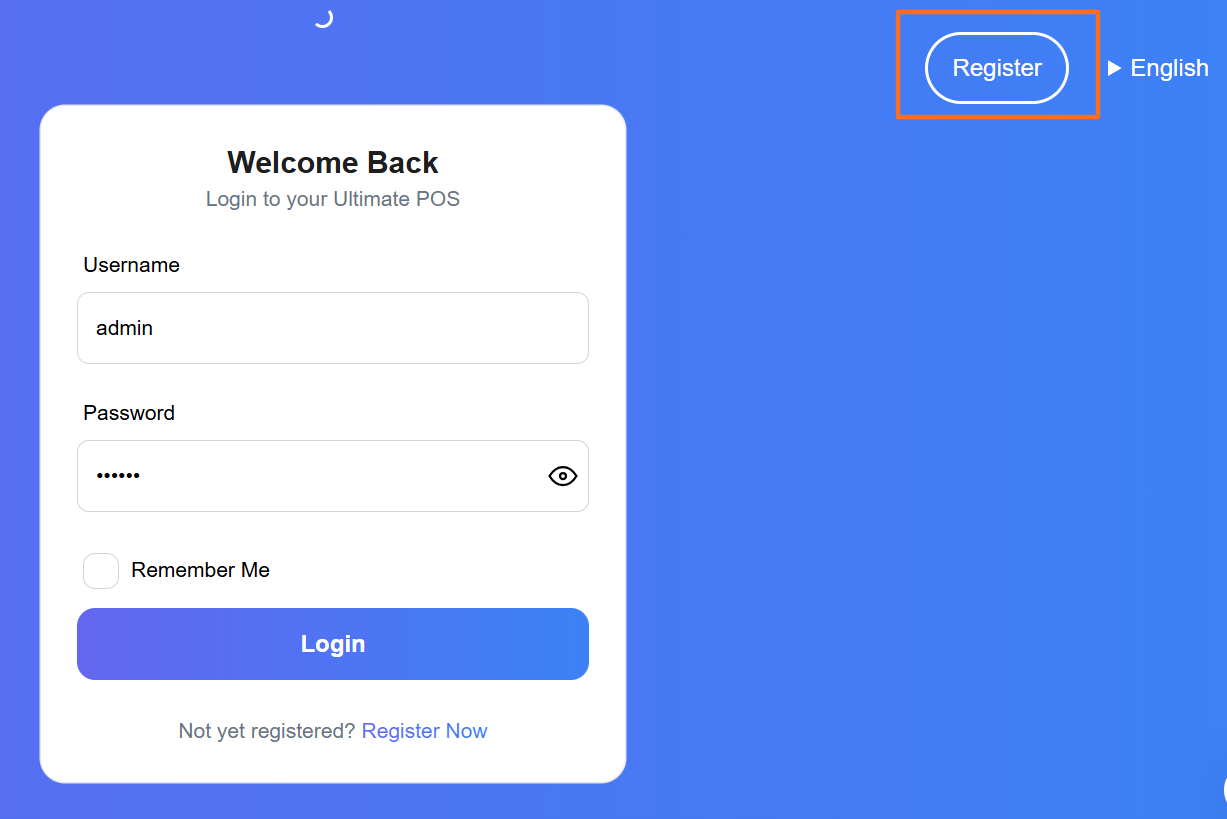
Follow the steps below to register a new business in the system:
Step 1: Click on the “Register Business” Button
- On the Welcome Page, click the Register Business button to begin the registration process.
Step 2: Fill in Business Details
- Enter the relevant information such as Business Name, Start Date, etc.
- Select the appropriate Currency and Time Zone.
- Click Next to proceed.
Note: Currency and Time Zone can be different for each registered business.
Step 3: Enter Tax Details
- Provide the Tax Name and Tax Number (e.g., GST, VAT).
- Tax fields are not mandatory and vary based on country regulations.
- Click Next after filling out the tax information.
Step 4: Add Business User Details
- Fill in the required User Name, Email, Username, and Password.
NOTE: These credentials will be used to
log in, so make sure to remember them.
- The user created during this step will be the Adminof the business.
NOTE:Additional admins can be added, edited, or deleted later from the
User Management section.
Step 5: Complete Registration
- Click the Register button.
- After successful registration, you will be redirected to the Login Screen.
- Use the Username and Password created in Step 4 to log in.
Note:
All registered details—
Business Information, Tax Info, and
User Details —can be updated anytime from the
Business Settings section.
KOKA BOOKS POS allows you to add multiple businesses. But many times you don’t want to allow external visitors to register there business. So you can disable registration by following these steps.